


Like most people, I don’t give much thought to what’s going on behind the scenes of my Windows PC. I’m pleased as long as my laptop boots up, opens Chrome, and allows me to complete my work.
However, after observing that my system had become sluggish recently, I began to question how many background programs were running quietly without my knowledge. That’s when I discovered a list of Windows services that most home users don’t require.
Instead of digging through Microsoft’s documentation, I opted to ask Gemini 3.5 Flash for assistance. My goal was to simply explain which services were worth looking at, what they did, and whether disabling them would make a practical impact for someone like me.
The results were surprisingly useful.
The prompt I used
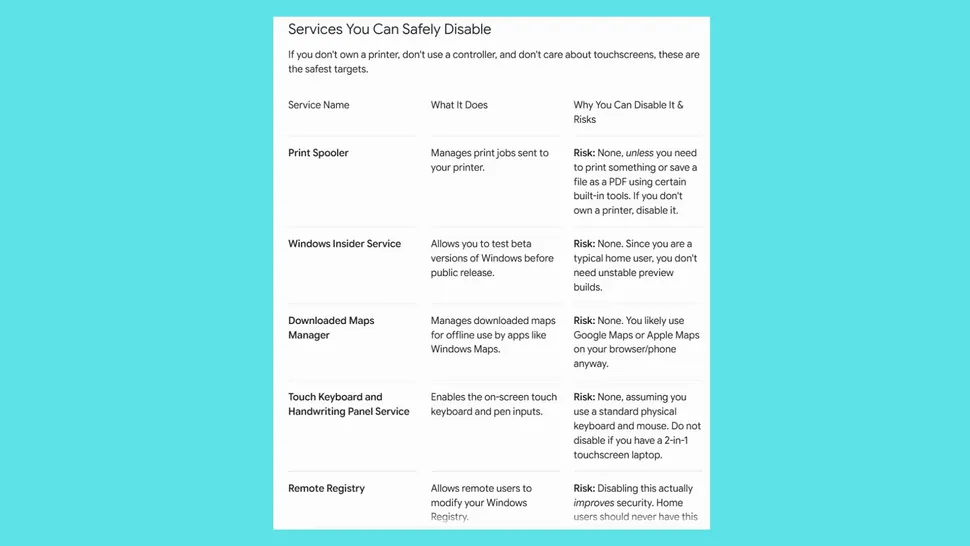
I gave Gemini a straightforward prompt: “I’m a typical home user. I browse the web, stream videos, write documents and occasionally play games. Which Windows services can I safely disable, what do they do and what are the risks?”
Rather than overwhelming me with technical jargon, Gemini described everything in plain English and highlighted the services that were most likely redundant for me. If you have Personal Intelligence activated, Gemini will determine what you will find valuable.
As always, before deactivating services on your own PC, make a restore point and investigate any changes. Here are the suggestions it generated for me.
1. Fax
What happens now? I’m old enough to remember using a fax machine, although I haven’t used one since Beanie Babies became popular. That being said, the first recommendation was simple. Gemini pointed out that unless you’re still sending or receiving faxes from your computer, the Fax service is useless for most users.
According to the original list, it is one of the safest services for most home users to disable.
2. Downloaded maps manager
This service allows you to use offline maps in Windows. Gemini noted that if you never download maps for offline navigation, you will probably not notice if it is turned off.
That described my situation perfectly. I use mapping apps on my phone, not my laptop, so this was another service I had completely forgotten existed.
3. Distributed link tracking client
This was one of a few services I had never heard of. Gemini stated that it helps retain linkages between files across networked computers, which is useful in corporate situations but often meaningless for consumers who only have one PC at home.
Without AI translating the explanation, I would have likely ignored it totally because the name appears considerably more significant than it is for many users.
4. Delivery optimization
This one was more intriguing. Delivery Optimization enables Windows to distribute update files across several devices. In rare circumstances, it can even share update data with other computers, reducing download times.
Gemini went beyond recommending that I disable it. It described the trade-offs and indicated that whether it’s worth retaining is determined by how many Windows devices you have and how you use them.
That is exactly the type of direction I was hoping for from AI.
5. IP helper
Another service with a name that seems important but isn’t is IP Helper. I had no idea what it was, but Gemini informed that IP Helper is primarily for complex networking technologies. For many residential users, it operates quietly in the background, delivering no discernible benefit. One thing to keep in mind is that if you play multiplayer games on your PC using the Xbox app, removing it may cause connection troubles.
Again, the AI’s most important contribution was not in recognizing the service, but in understanding its purpose.
6. Retail demo service
Unless you’re presenting your PC on the showroom floor of a big-box retailer, this service is unlikely to be useful. Gemini instantly identified it as something that most consumers could safely ignore.
This was one of the more startling discoveries, as I had no idea Windows had a service specialized for retail demos.
7. Windows Insider service
People who participate in Microsoft’s Windows Insider program utilize this service to test pre-release versions of Windows.
Because I’m not running preview builds, Gemini stated it wasn’t essential for my configuration.
It served as another reminder that Windows offers a large number of components tailored for specific categories of users that may not be applicable to everyone.
How to Try It

Follow these step-by-step steps to audit your Windows PC with Gemini and safely manage your background services.
- Step 1: Open Gemini and use this prompt: “I am a home user who uses my PC for [insert your uses, e.g., gaming, remote office work, photo editing]. I want to optimize my background processes. Can you give me a list of 5–7 Windows services that are safe to disable for my specific use case, explain what they do in plain English, and tell me if there are any risks?”
- Step 2: Create a System Restore Point (Crucial!): Before changing any system settings, create a safety net so you can easily revert your changes if something goes wrong.
- Press the Windows Key, type “Create a restore point”, and press Enter.
- In the System Properties window that pops up, click the Create… button at the bottom.
- Name it something memorable (e.g., “Before Gemini Service Audit”) and click Create.
- Step 3: Disable the Services. Once you have your list from Gemini and your restore point is safe, you can look up and modify the services.
- Press Windows Key + R to open the Run dialog box.
- Type services.msc and press Enter. This opens the master Windows Services manager.
- Scroll through the alphabetical list to find a service Gemini highlighted (for example, Distributed Link Tracking Client).
- Double-click the service to open its Properties window.
- Look for Startup type. Change it from Automatic or Manual to Disabled.
- Click Apply, then click OK. Restart your computer when you are finished updating your chosen services.
- Pro-Tip: If you are nervous about completely “Disabling” a service, set its Startup Type to Manual instead. This prevents the service from running automatically at boot, but allows Windows to turn it on later if a program explicitly requests it.
If you get stuck, share your screen with Gemini. To allow Gemini to see anything outside of your browser, such as a coding window, a Word document, or your full desktop, you can use Google’s official development environment, Google AI Studio. Anyone with a Google account can access it for free. Go to aistudio.google.com.
click. Select the Live/Audio window option. Choose a real-time multimodal model (such as the Gemini Flash Native Audio Preview or comparable Live models). Click the Share Screen icon at the bottom. A Windows popup will appear asking what you want to share.
You can select: Entire Screen: Ideal if you want Gemini to monitor everything you do. Window: Allows Gemini to view only one application (such as Excel or Discord). Click Share, activate your microphone, and communicate to Gemini in real time about what’s happening on your monitor.
What Gemini got right
Gemini discovered numerous hidden objects that were reducing performance. And, while most of these services use very few resources on a PC, removing them helped to alleviate some of the issues that were holding me back.
Aside from that, Gemini assisted with technical jargon that were scary, especially when I wasn’t sure if a particular function was significant. For most people, that is enough to keep them from investigating settings that may be relevant to their own systems.
Instead of forcing me to figure out service names like “Distributed Link Tracking Client” or “IP Helper,” Gemini explained what they do, who needs them, and why I should care.
That’s becoming one of my favorite applications for AI: not replacing knowledge, but rather making complex technologies easier to comprehend. If your computer is slow, consider letting Gemini help. Please let me know in the comments what worked for you.