Apple’s Liquid Glass design gave the iPh²one a slick, frosted look with iOS 26, but the limited default selections left many customers seeking greater customization. Fortunately, iOS 27 fixes this by replacing the previous settings with a continuous personalization slider.
This new tool provides precise control over the transparency and hue of blurred interface elements throughout the operating system. Whether you desire a perfectly clear view of your wallpaper or a strong, high-contrast tint that helps text reading, you may now choose your option.
Here’s how to discover and use the new feature.
You’ll need to be running iOS 27
Because iOS 27 is still in its early testing stages, you will need to install the developer beta to use this functionality. If you haven’t signed up yet, you can do so for free through the Apple Developer Program.
Otherwise, if you’ve previously downloaded a beta, simply navigate to Settings, General, Software Update, and Beta Updates on your iPhone to enable it.
Where to find the Liquid Glass slider on iPhone
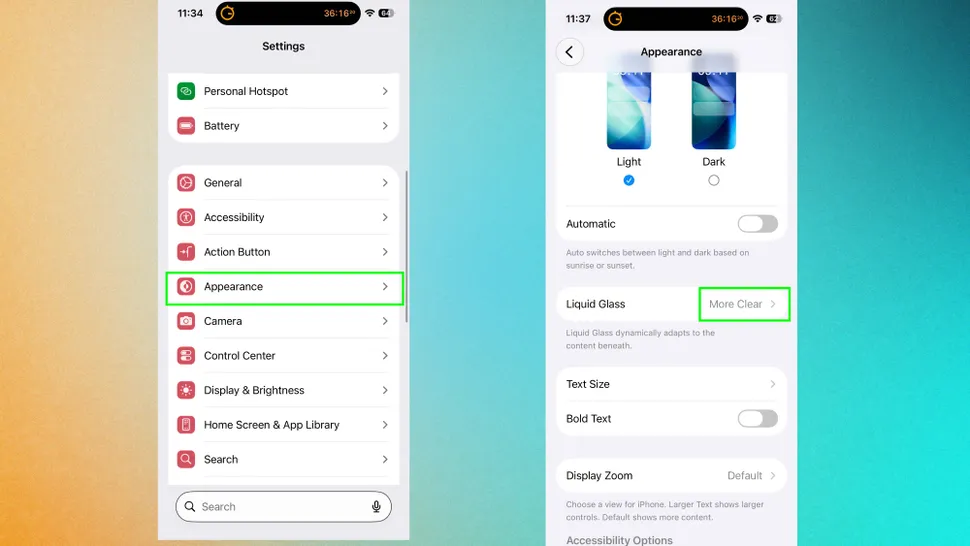
Finding the new control takes only a moment. First, open your iPhone’s Settings app and go down to the Appearance option. Then, tap Liquid Glass.
Inside this section, the new Liquid Glass slider is prominently shown where the old “Clear” and “Tinted” toggle buttons used to be.
How to adjust the Liquid Glass slider
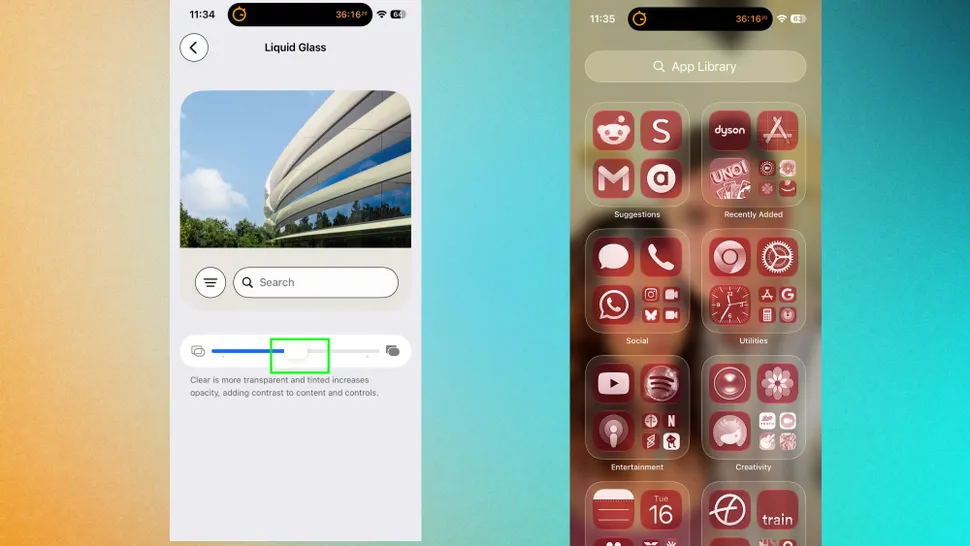
Operating the slider is really simple because the UI updates in real time as you interact with it.
To use it, simply drag the slider to the left to enhance transparency or to the right to increase the tint depth.
Because the spectrum is completely continuous, you can pause at any point to produce an optimally balanced middle-ground configuration. As you move your finger, keep an eye on the Settings app’s backdrop to see how the system-wide blur reacts.